Add Your Tutorial Data to Your Data Warehouse
Now that you have run queries through AtScale and leveraged the tutorial data found in the local tutorial PostgreSQL database, you can connect to your cloud database using the same tutorial data model.
-
Load the AtScale Tutorial Data to your data warehouse platform. For instructions, refer to AtScale's Internet Sales Model on GitHub.
-
In Design Center, in the left-side navigation, click Datasources. The Datasources panel opens.
-
Add your data warehouse. For instructions, see Adding Data Warehouses.
-
In the left-side navigation, click Workspace. The Workspace panel opens.
-
In the Repo field, select the AtScale Tutorial - Internet Sales repository.
-
In the Branch field, select the branch associated with your data platform.
-
Under the
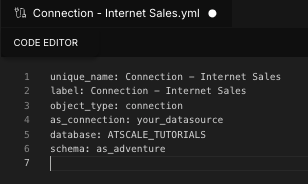
connections/folder, open the fileConnection - Internet Sales.yml. The file opens in the Code Editor.
-
Edit the file as follows:
as_connection: Set this to the name of your datasource.database: Set this to the database you loaded the tutorial data into.schema: Set this toas_adventure.
-
Click Save File.
You can now deploy your model and connect to it from BI tools: