Add a Level Alias
Level aliases enable the creation of tabular reports that select hierarchical expressions without forcing the user to drill down a hierarchy. For more information on how level aliases work, see About Dimension Attributes.
To add a level alias to a level:
-
In Design Center, open the dimension you want to add a level alias to for editing. The Dimension properties panel opens.
-
In the Hierarchies section, click the context menu for the level you want to add a level alias to and select Create Level Alias.
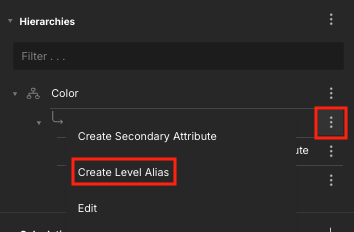
The Level alias properties panel opens.
-
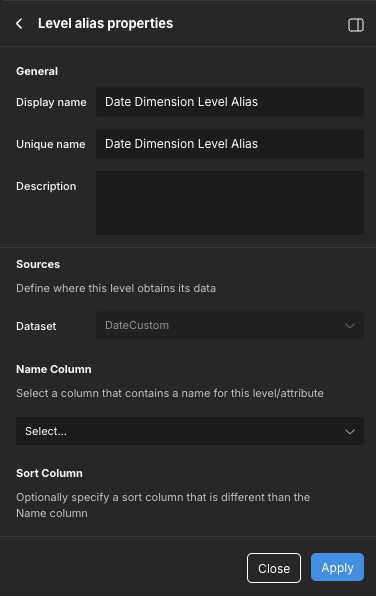
Complete the following fields:
-
Display name: The display name for the level alias. This is the name of the level alias that will appear in BI tools. This value does not need to be unique.
-
Unique name: The unique name for the level alias. This value must be unique within the dimension.
NoteYou should not change this value after the model has been published. Doing so may break existing data sources and reports that rely on this model.
-
Description: Optional. A description of the level alias. This information appears in BI tools (when supported) and is made available to AI tools.
NoteIf the level alias doesn't have a manually entered description, but the Name Column the level alias is based on has a description in the data warehouse, the description of the Name Column automatically appears in the Description field. This information is not added to the dimension's SML, but is included when you deploy the model. From there, it becomes visible in BI tools (when supported), and is made available to AI tools.
You can edit the prepopulated description as needed. Any changes you make will override the description from the data warehouse.
If the description in the data warehouse changes, changes will be reflected in the level alias when you refresh the dataset in Design Center.
-
Dataset: The source dataset that contains the column the level alias is based on. This defaults to the dataset for the parent level and cannot be changed.
-
Name Column: The column in the Dataset that the level alias is based on.
-
Sort Column: By default, sorts are performed on the Name Column. If you want to sort on a different column, select it here.
-
-
In the Data Handling section, enable/disable the following options as needed:
- Exclude from System-Generated Dimension-Only Aggregates: Excludes the level alias from system-generated dimension-only aggregates. This is useful if the alias contains a large number (millions) of distinct values that you don't want to aggregate.
- Exclude from System-Generated Fact-Based Aggregates: Excludes the level alias from system-generated fact-based aggregates. This is useful if the alias contains a large number (millions) of distinct values that you don't want to aggregate.
- Custom Empty Member: Enable this option to ensure that un-joinable values (for example, NULL) that may reside in the foreign key columns of the fact dataset are included in your query results. The Custom Empty Member feature provides the convenience of handling NULL values so data architects are not forced to fix their fact tables. For maximum compatibility with BI tools, you will have to add an empty member record to the dimension dataset. To learn more about Custom Empty Members, see Using Custom Empty Members for Levels and Attributes.
-
In the Visualization section, update the following fields as needed:
-
Visualize in BI tool?: Determines whether the level alias appears in BI tools.
-
Expose as Excel Pivot Table property: Determines whether the level alias appears in Microsoft Excel pivot tables.
When enabled, users can add the alias to pivot tables in Excel. When disabled, users cannot add the alias to pivot tables; however, they can still add it to reports using the Properties context menu. For more information, see Using MDX User-Defined Member Properties.
NoteFor aliases that do not have this setting configured, it defaults to enabled when the model is deployed. You can control this behavior with the
schema.userDefinedMember.defaultExcelPivotTablePropertyglobal and model settings. For more information, see Schema Settings and Other Model Settings. -
Expose as user defined property: Determines whether the level alias is exposed to Excel and MDX users as a user-defined member property. For more information, see Using MDX User-Defined Member Properties.
-
Folder: Defines the folder in which the level alias appears in BI tools.
-
-
Click Apply in the Level alias properties panel.
-
Click Apply in the Dimension properties panel.
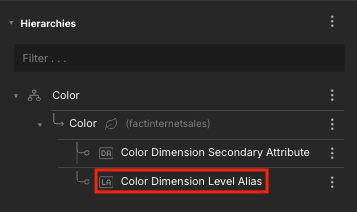
The level alias is added to the level and appears in the Model properties panel: