System Hardening
By default, AtScale allows the setup of any service. To restrict access from services not in your company whitelist, you can add rules to your atscale-mcp client in the Identity Broker.
-
In Design Center, in the left-side navigation, click Security. The Identity Broker opens.
-
In the left-side navigation, click Clients.
-
Click the
atscale-mcpclient. -
On the Settings tab, under Access Settings, edit the following fields so they are restricted to the URLs you will use for your MCP service. The redirects will depend on the AI application you're using.
- Valid redirect URIs: This should be a valid URI pattern that the browser can redirect to after a successful login; for example,
http://example.com/*. You can add multiple values by clicking Add valid redirect URIs. - Web origins: Determines the allowed CORS origins; for example,
https://chatgpt.com/*. You can include multiple values by clicking Add web origins.
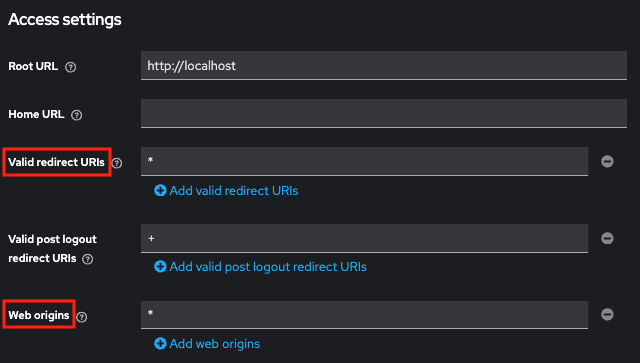
- Valid redirect URIs: This should be a valid URI pattern that the browser can redirect to after a successful login; for example,
-
Click Save.