Configuring Resource Permissions for Deployed Models
Resource permissions enable you to control which users and groups can access resources (such as metrics and calculations) in your deployed models from BI tools. This gives you finer-grained control over access to your model data than model permissions, which apply to the entire model.
Resource permissions are only available for metrics and calculations.
Overview of resource permissions
By default, all users and groups can access all resources in a model. Access is only restricted if you add resource permissions to the model.
Resource permissions only apply to the current model. If you need to restrict access to a resource in other models, you must define permissions for those models separately.
When defining a resource permission, you must select its type, then select the users and groups you want it to apply to. AtScale provides the following permission types:
- Show To: The resource is only accessible to the selected users and groups. No others can access it.
- Hide From: The resource is hidden from the selected users and groups. All others can access it.
Show To permissions take precedence over Hide From permissions. For example, if you have a permission that hides Metric A from Group 1, none of the users in Group 1 can access Metric A in the deployed model. If you then add a second permission that exposes Metric A to User 1, who is a member of Group 1, Metric A is hidden from all users in Group 1, except User 1.
Changes to permissions take effect at runtime. You do not need to redeploy your model to apply them.
Prerequisites
Before you define resource permissions, do the following:
-
Set the following global settings:
auth.runtimePermissions.disabled: Set this tofalse.security.runtimePermissions.measures.enabled: Set this totrue.
For more information, see Authentication Settings and Security Settings.
-
Ensure the model you want to add permissions to is deployed.
Add a resource permission
To add a resource permission to a model:
-
In Design Center, in the sidebar, click Deployed Catalogs. The Deployed Catalogs panel opens.
-
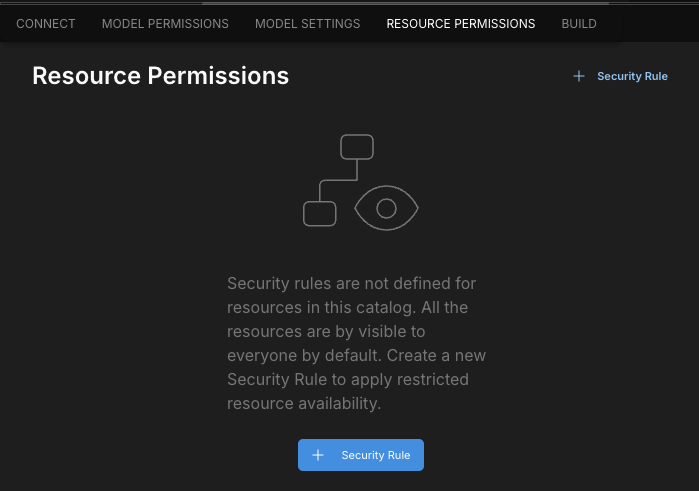
Click the model you want to configure permissions for, then go to the Resource Permissions tab.
-
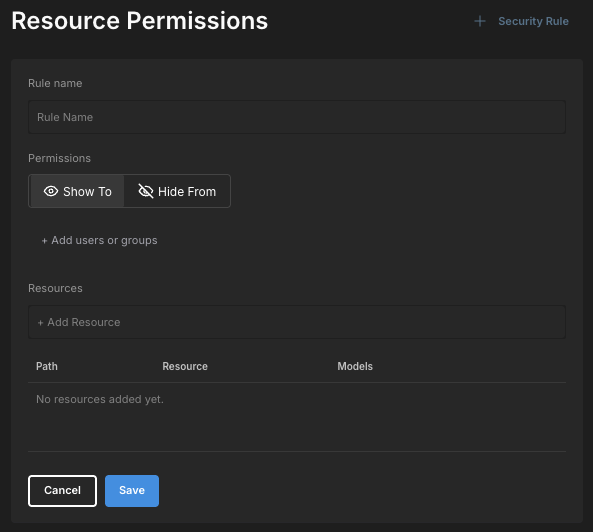
Click Security Rule and complete the following fields:
- Rule name: Enter a name for the rule.
- Permissions: Select the type of permission the rule defines, then select the users and groups you want it to apply to.
- Resources: Click the text field and select the specific metrics and calculations you want the rule to apply to.
-
Click Save.
The security rule is added and appears in the list on the Resource Permissions tab. It will be applied automatically at runtime; there is no need to redeploy your model for your changes to take effect.
Delete a resource permission
To delete a resource permission:
-
In Design Center, in the sidebar, click Deployed Catalogs. The Deployed Catalogs panel opens.
-
Click the model you want to delete permissions from, then go to the Resource Permissions tab.
-
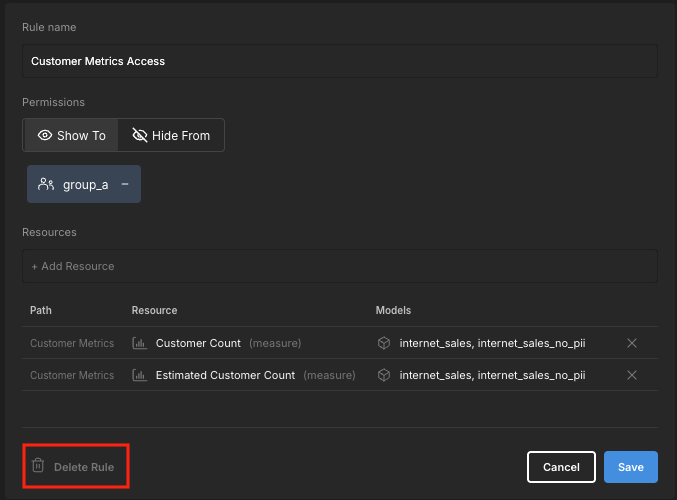
Locate the security rule you want to delete and click Edit Rule.

-
At the bottom of the rule, click Delete Rule.
-
In the dialog that appears, click Delete.
The rule is removed from the list and no longer applies to the model.